How to Add Brief72 to Your Home Screen (iPhone and Android)
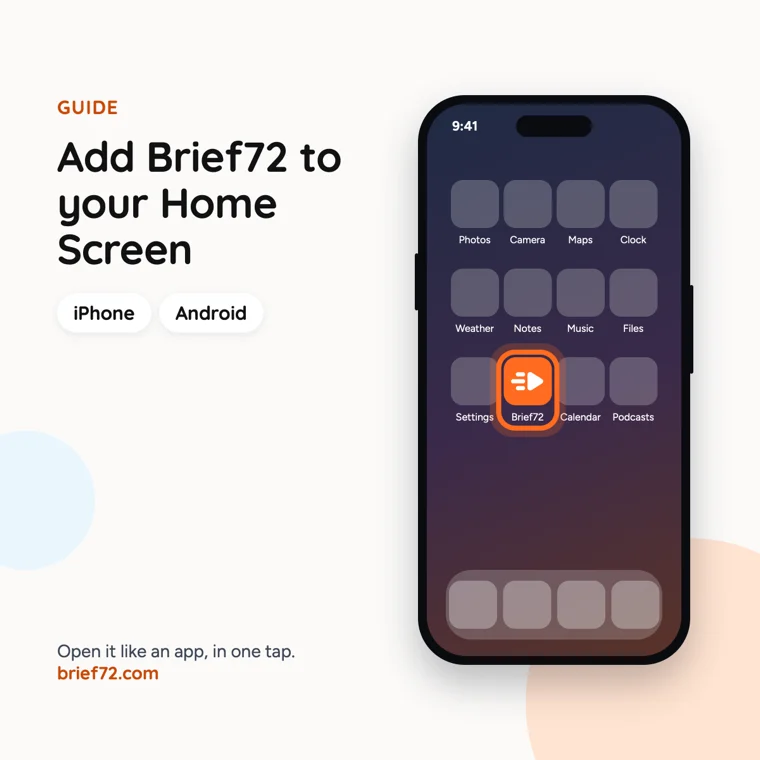
There's no Brief72 app in the App Store or Google Play yet, and you don't need one. Add Brief72 to your Home Screen and it opens like an app, with its own icon, so your campaigns are always one tap away.
It takes a minute or two. Follow the steps for your phone: iPhone (Safari) or Android (Chrome).
On an iPhone (Safari)
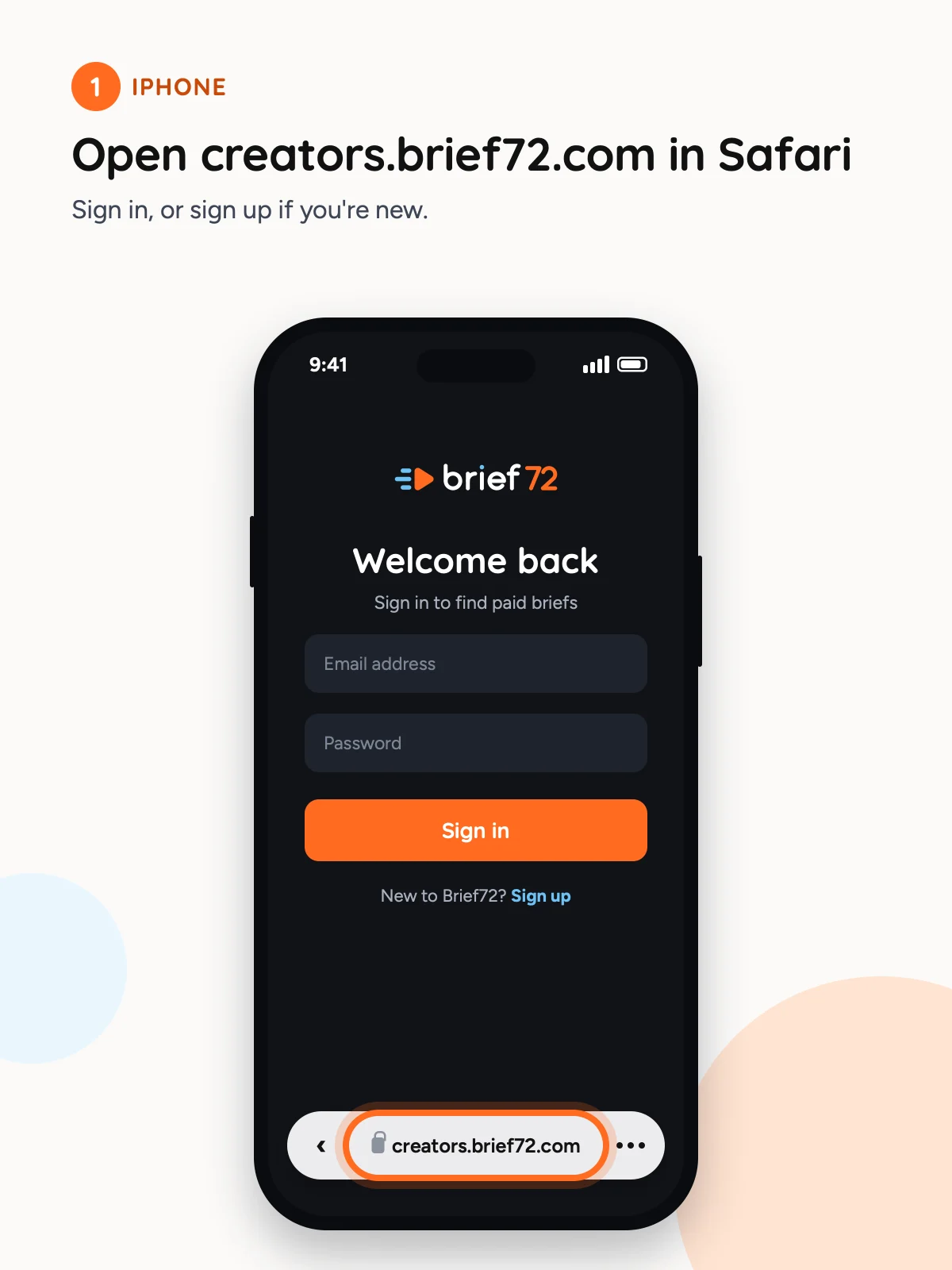
Open creators.brief72.com in Safari
Sign in, or sign up if you’re new.
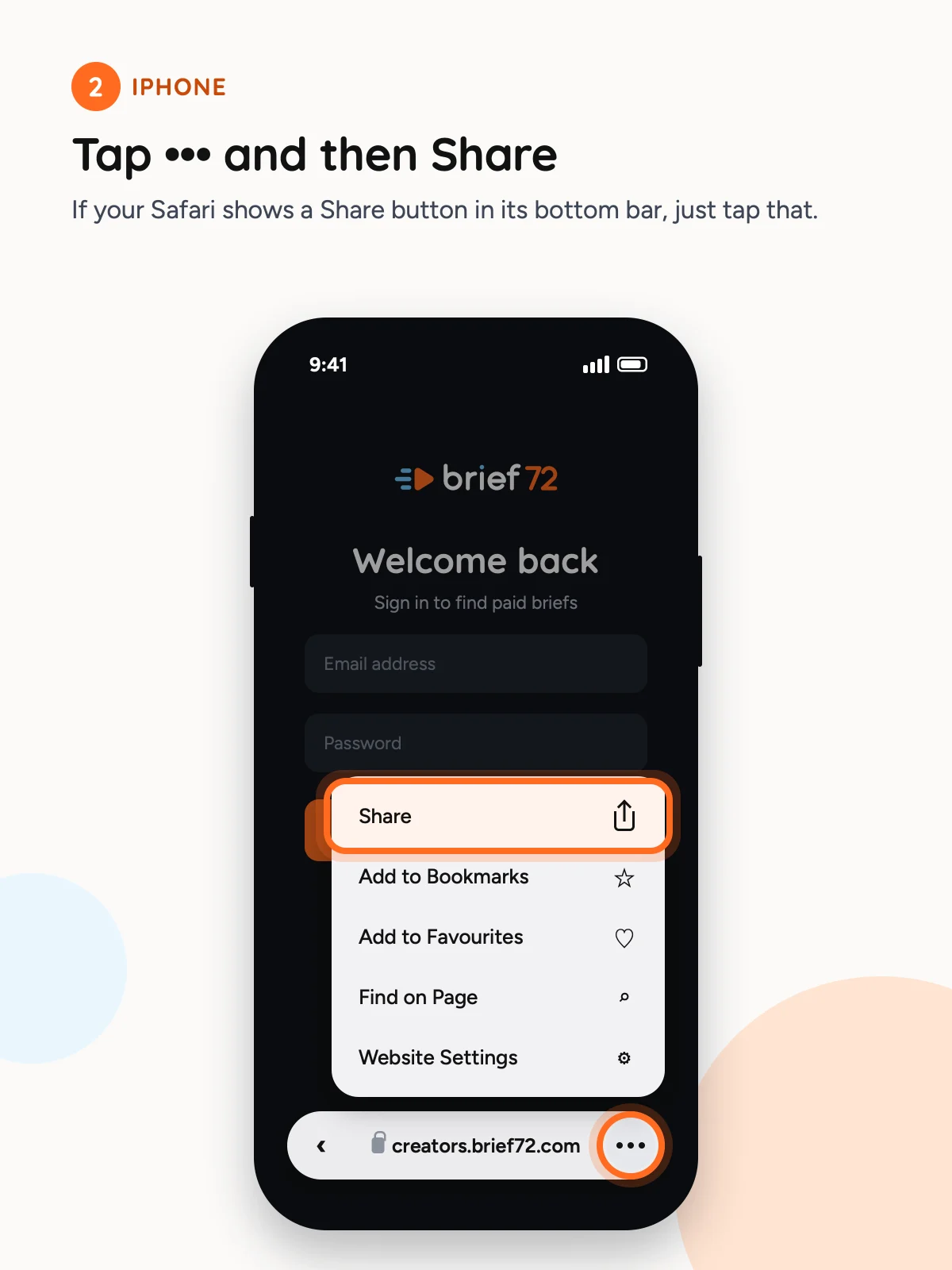
Tap ••• and then Share
On iOS 26, the ••• button (three dots) is next to the address bar. If your Safari shows a Share button in its bottom bar, just tap that.
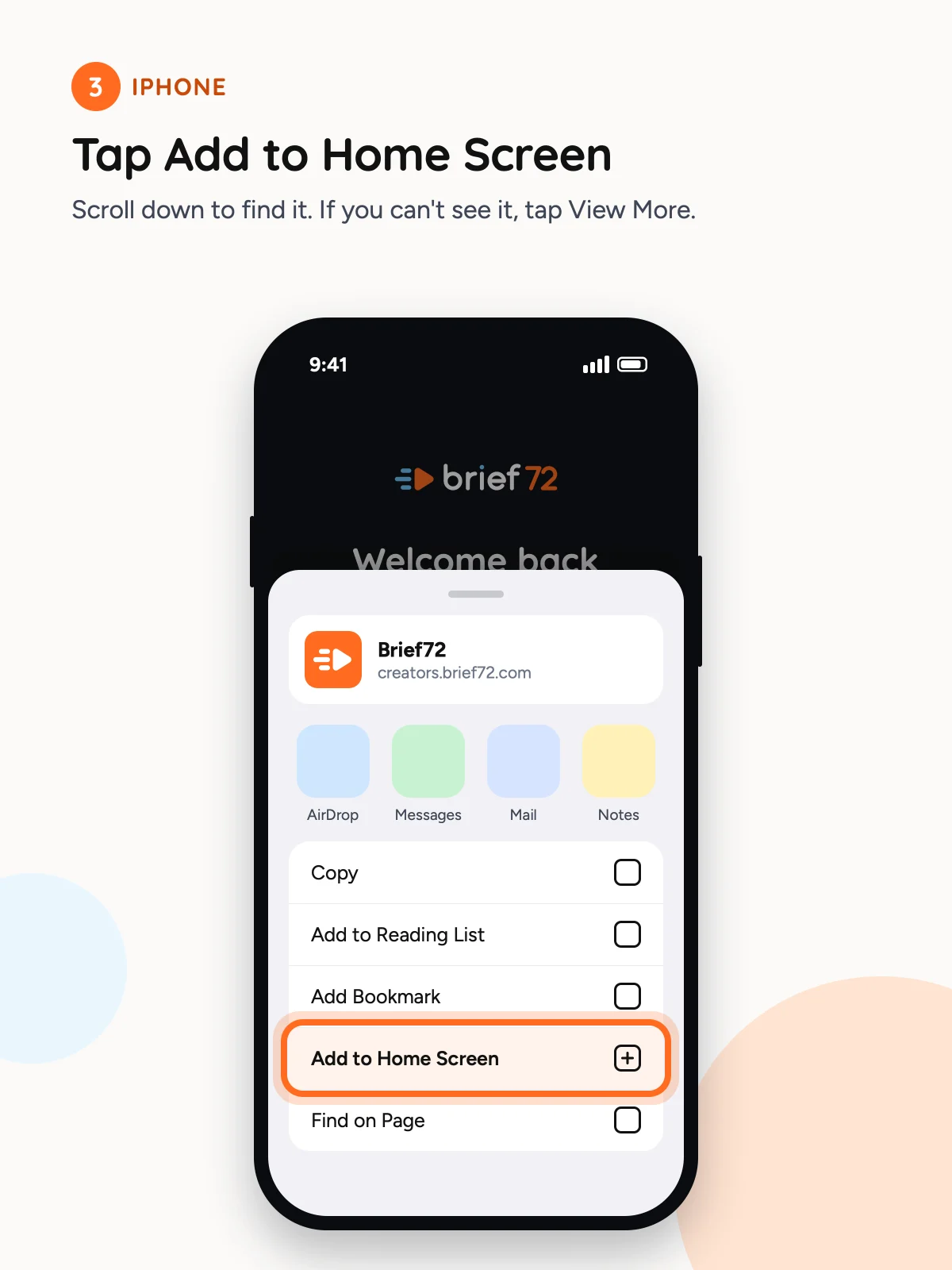
Tap Add to Home Screen
Scroll down to find it. If you can’t see it, tap View More.
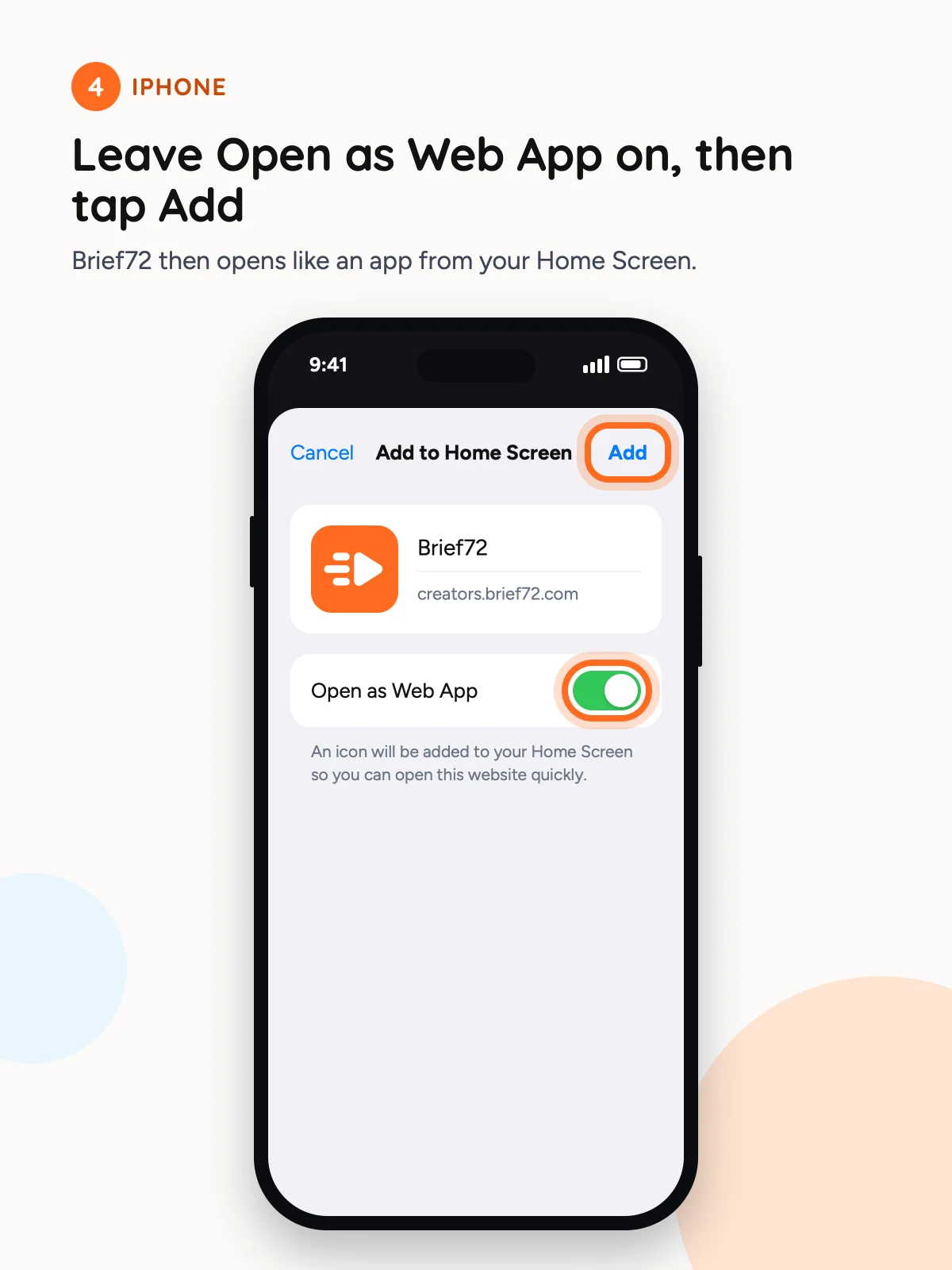
Leave Open as Web App on, then tap Add
Brief72 then opens like an app from your Home Screen.
If Brief72 asks you to sign in when you open it from your Home Screen, just sign in again there.
On an Android Phone (Chrome)
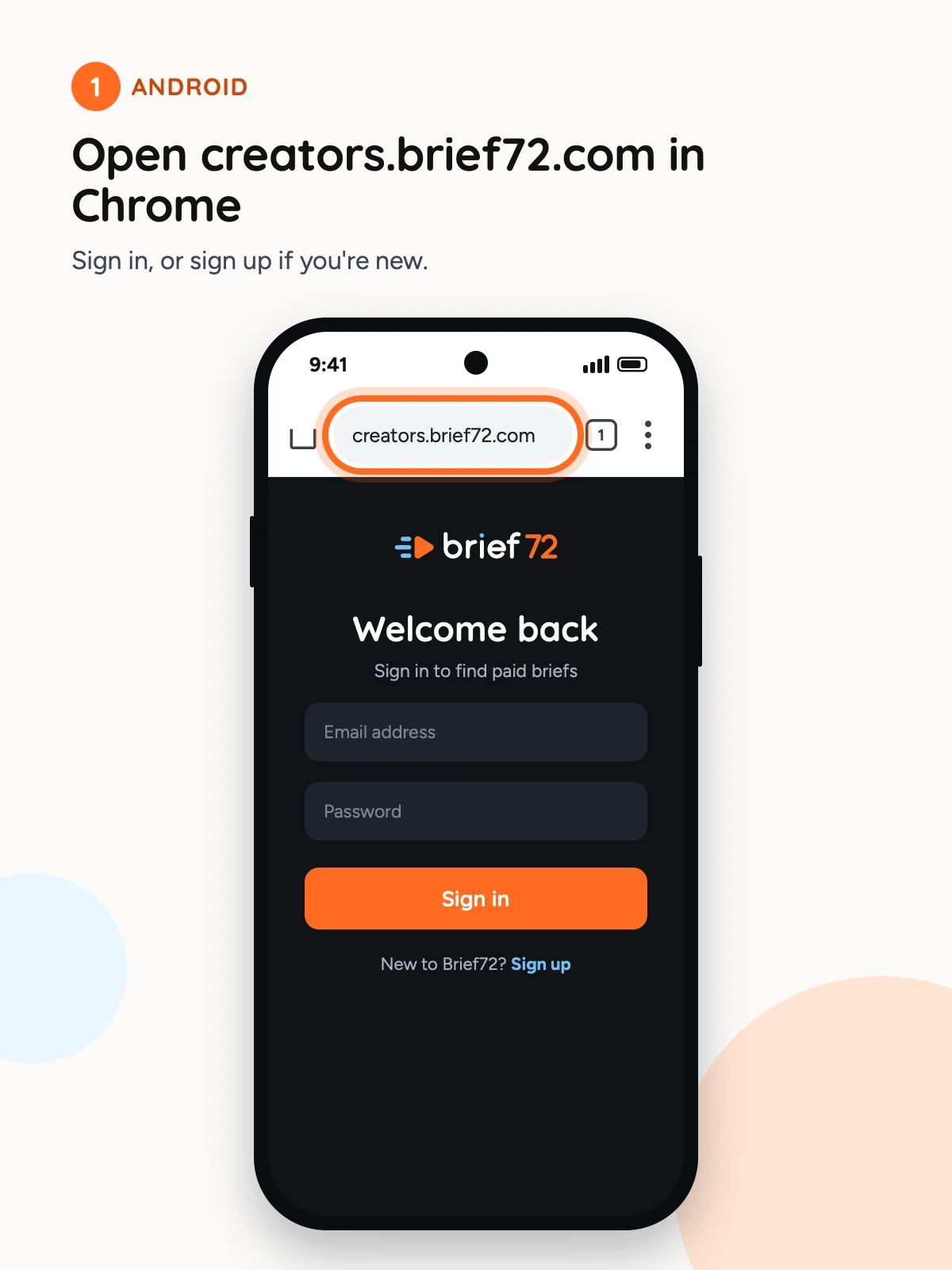
Open creators.brief72.com in Chrome
Sign in, or sign up if you’re new.
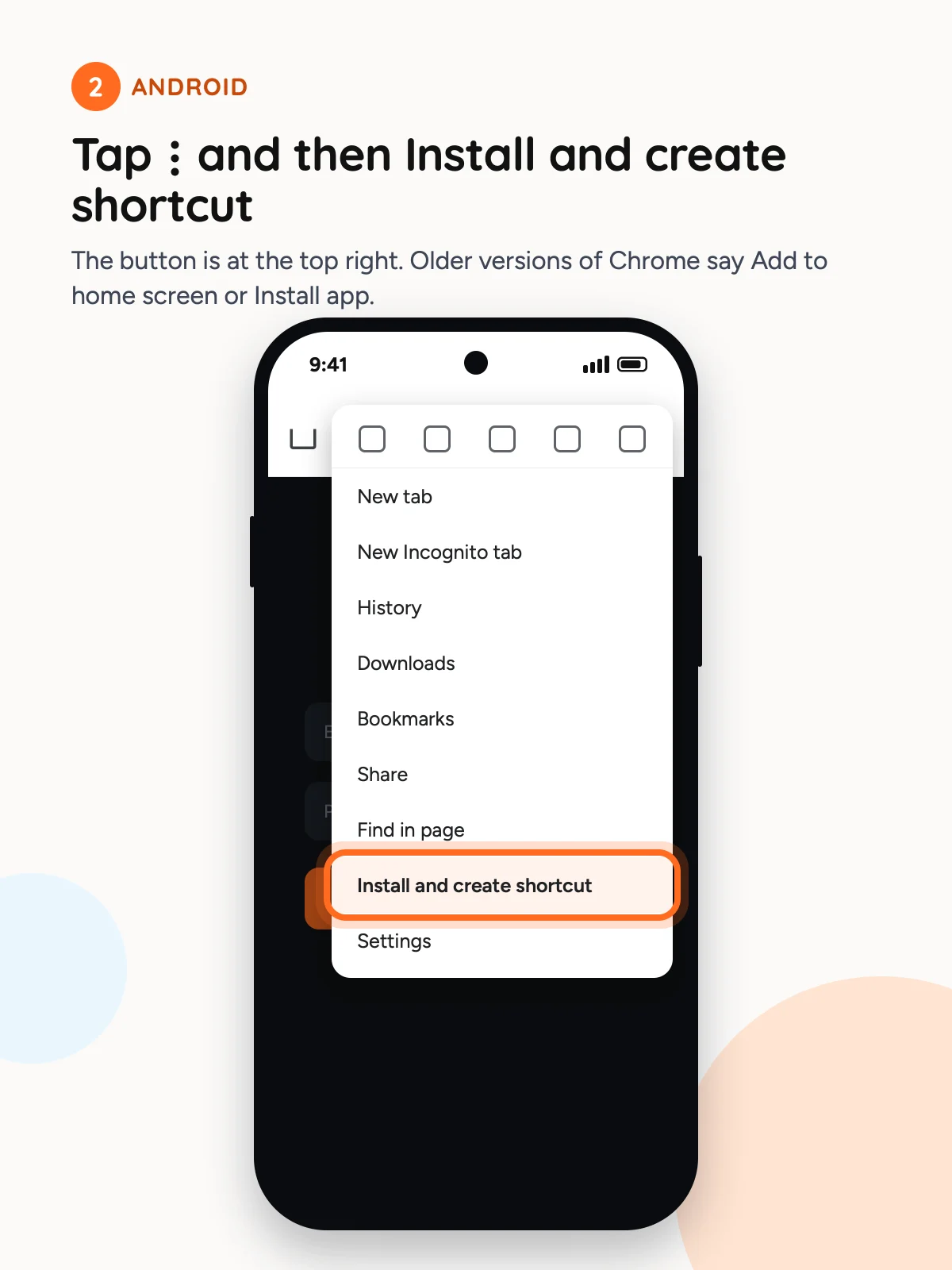
Tap ⋮ and then Install and create shortcut
The button is at the top right. Older versions of Chrome say Add to home screen or Install app.
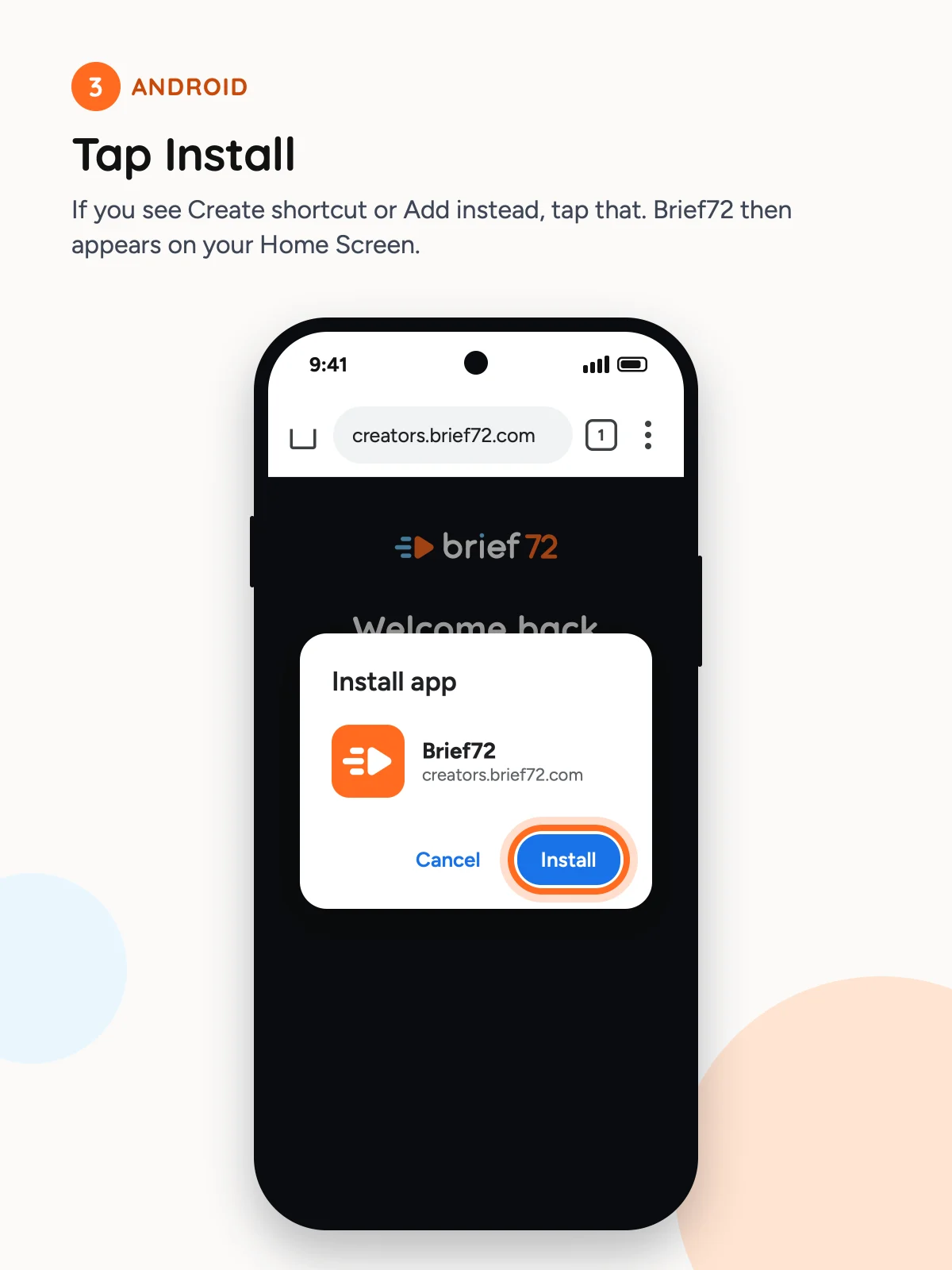
Tap Install
If you see Create shortcut or Add instead, tap that. Brief72 then appears on your Home Screen.
For Brands Too
It works the same way for brands. Open brands.brief72.com in Safari or Chrome, sign in, and follow the same steps.
Hearing About New Campaigns
Brief72 doesn’t send push notifications to your phone, from the Home Screen or anywhere else. To hear about new campaigns as soon as they open, turn on new campaign emails in the app, or join our free WhatsApp and Telegram channels.
Not signed up yet? See how Brief72 works for creators.
Is there a Brief72 app in the App Store or Google Play?
Not yet. Brief72 works in your phone’s browser, and once you add it to your Home Screen it opens like an app, with its own icon.
Will I get notifications on my phone?
No. Brief72 doesn’t send push notifications. To hear about new campaigns, turn on new campaign emails in the app, or join our free WhatsApp and Telegram channels.
Does it work for brands too?
Yes. Open brands.brief72.com instead of creators.brief72.com and follow the same steps.
I can’t see Add to Home Screen on my iPhone. What should I do?
Make sure you’re using Safari. Tap ••• next to the address bar, then Share, then scroll down the list. If it isn’t there, tap View More to see the full list.